
Export dialog
Run "Export PDF (AutoGallery)" from the command palette: paper and margins on the left, the real layout on the right, one file at the end.
The output is re-typeset for the paper size, not a screenshot squeezed into A4. Gallery rows, floats and caption widths are all recomputed against the text frame.
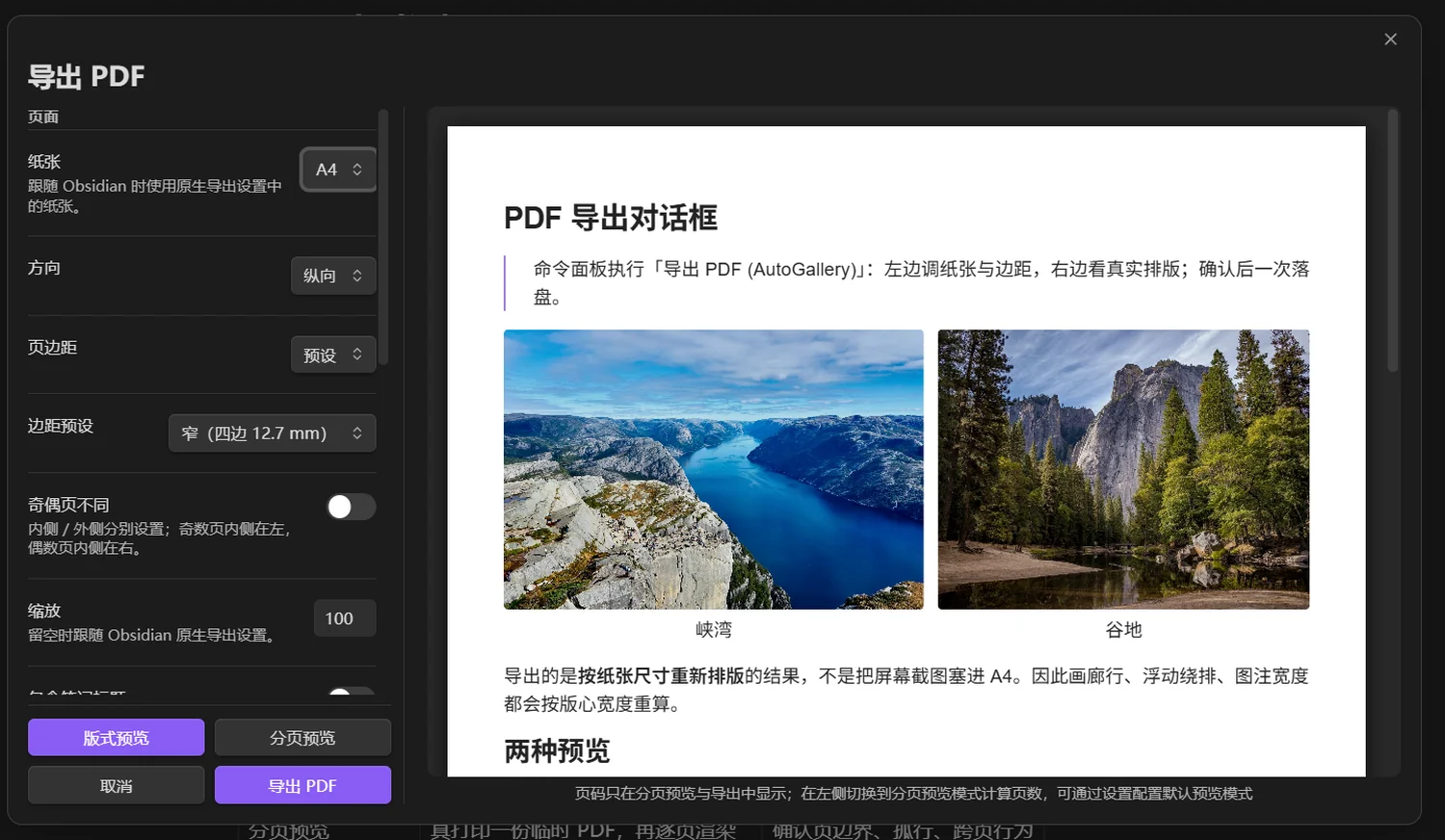
The PDF export dialog contains paper, margins, page numbers and preview.
Two previews
| Mode | Behaviour | Good for |
|---|---|---|
| Layout preview (default) | one continuous page, scaled to the real paper width | checking font size, column width, captions |
| Paginated preview | prints a temporary PDF first, then renders it page by page | checking page breaks, orphans, cross-page behaviour |
Layout preview does not paginate; you are looking at one continuous column. Judging whether a row will be split across pages requires the paginated preview, which waits for a real print and is noticeably slower on long documents.
What you can change
| Item | Values | Note |
|---|---|---|
| Paper size | Follow Obsidian / A3 / A4 / A5 / Legal / Letter / Tabloid | "Follow" uses the native export settings |
| Orientation | Follow / portrait / landscape | same |
| Margins | Follow / preset / custom four sides | presets match Word's common text frames |
| Mirror odd/even | on / off | binding edge inside, outer edge narrower |
| Scale | 10%–200% | empty follows the native setting |
| Include note title | on / off | inserts the note name before the body |
| Page numbers | on/off, header or footer, left/centre/right | see the note below |
| Heading pagination | start level h1–h6 | matching headings start a new page |
| Image pagination | on / off | shrink a trailing image to fit |
| Orphan control | on/off, 1–5 trailing lines | pull stray lines back |
Page numbers live in the margin
Page numbers print inside the margin, not inside the text frame. Therefore:
- With numbers in the footer, keep at least 11mm of bottom margin.
- With numbers in the header, keep at least 11mm of top margin.
Below that the digits get clipped — not a bug, just paper geometry.
Mirroring odd and even pages
When enabled, the binding (inner) and outer edges use different margins: odd pages have the inner edge on the left, even pages on the right. Top and bottom margins still follow the settings above. Useful for double-sided printing and bound copies.
Failure falls back to native export
If printing does not finish within the export timeout (60 seconds by default), the plugin:
- closes this dialog;
- falls back to Obsidian's native PDF export;
- reports it with a notice.
Closing the dialog first avoids two save dialogs at once. What you get after the fallback is the native result — pagination optimisation does not apply.
Where to trigger it
| Entry point | Location |
|---|---|
| Command palette | "Export PDF (AutoGallery)" |
| File menu | right-click in the file list → Export PDF |
| Settings page | the "Export current note" button |
Desktop only, and the active file must be Markdown.
Next
- Pagination: the four rules that decide page breaks
- Troubleshooting